Validator
The Validator checks your open map (.xodr) before export. It runs four validation bundles — each bundle looks at a different part of map quality — and gives you a PASS or FAIL summary plus detailed reports.
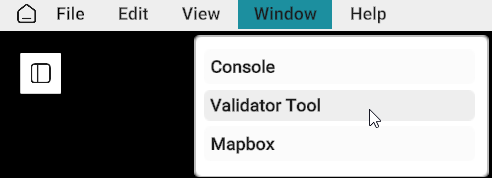
How to Use Validator
| Method | Steps |
|---|---|
| Validator Tool |
|
Validator Tool — confirmation dialog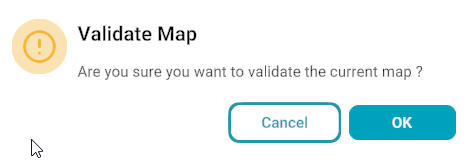
|
|
| Save As |
|
Save As — Run Validation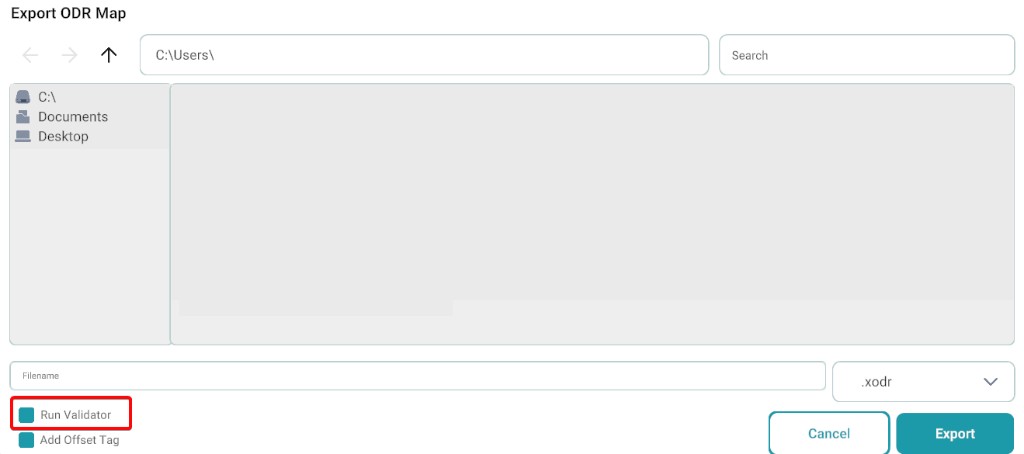
|
|
| Export Map |
|
Export Map — Run Validation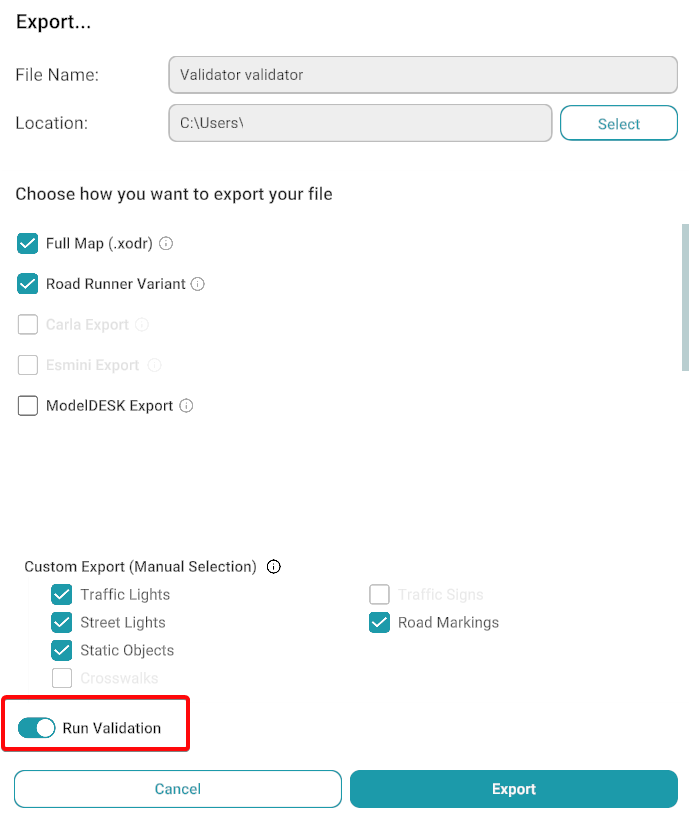
|
|
Validation Bundles
When validation runs, these four bundles are checked:
| Bundle | Main focus | Pass when |
|---|---|---|
| ASAM QC OpenDRIVE | Standard OpenDRIVE quality | Schema OK, failures within limit |
| Continuity | Smooth geometry along roads | No C0/C1 errors |
| Traffic Simulation | Ready for traffic simulation | Zero errors |
| Additional Validation | Extra RepliMap data rules | Zero errors and warnings |
Expand each bundle below for full details.
ASAM QC OpenDRIVE
What it checks
- Whether the map file is valid OpenDRIVE XML (schema check)
- Standard ASAM quality rules for OpenDRIVE maps
Why it matters
- Industry-standard quality check for OpenDRIVE files
- Catches structural and compliance issues early
Result
- PASS — Schema is valid and failed checks stay within the allowed limit
- FAIL — Schema problems or too many failed quality checks
Where to look
opendrive_result.xqar— detailed ASAM report
Continuity
What it checks
Smooth connections along each road — no gaps or sudden jumps in:
- Road centerline geometry (position and heading)
- Lane offsets
- Elevation (height and slope)
Why it matters
- Discontinuities cause visible jumps, wrong lane shapes, or bad elevation in the map and in simulation
Result
- PASS — No continuity errors (C0/C1 errors)
- FAIL — One or more continuity errors found
Where to look
continuity/error_log.log— list of errorscontinuity/summary_log.log— short summarycontinuity/error_points.geojson— map locations of problem points
Traffic Simulation
What it checks
- Basic file validity (readable XML with OpenDRIVE root)
- Road geometry is complete and usable:
- Roads have a plan view and geometry
- Geometry parameters (lines, arcs, spirals) are valid
- Roads meet minimum length requirements
- Lane layout and junction references are correct
- Connections between roads at junctions:
- Linked road geometry aligns
- Surface overlap at connections
- Endpoints do not penetrate into the wrong road surface
Why it matters
- The map must pass these checks to run reliably in traffic simulation
Result
- PASS — No errors
- FAIL — One or more errors (warnings may still be reported)
Where to look
traffic_simulation/validation_result.json
Additional Validation
What it checks
Extra data-quality rules for RepliMap maps:
- Valid OpenDRIVE root element
- Numeric values are valid (no invalid or non-finite numbers)
- Station values (
s,sOffset) are not negative - Object IDs are unique
- Signal IDs are unique
- No duplicate placement of static objects
- Poles or street lights should not sit on driving lanes (warning)
Why it matters
- Catches data issues not covered by the other bundles
Result
- PASS — No errors and no warnings
- FAIL — Any error or warning
Where to look
internal/additional_validation.loginternal/validation_result.json
Overall Result
The master summary is saved to master_validation.log.
Overall PASS currently requires:
| Bundle | Required |
|---|---|
| ASAM QC OpenDRIVE | PASS |
| Traffic Simulation | PASS |
Continuity and Additional Validation are still run and reported. Fix their issues even when the overall result is PASS, so map quality is complete.
Viewing & Exporting Reports
After validation, the Map Validator tab opens automatically in the console.
- Open the Console.
- Select the Map Validator tab.
- Click Export and choose a save location.
The exported .txt file contains the full validation report for review, troubleshooting, or sharing with your team.
Note
Validation results are also saved in the output directory. View the full report in the output_result file.
Related
- Export Map — validate maps before export
- Main screen overview — Window menu and console access
- Troubleshooting — resolving issues and error messages