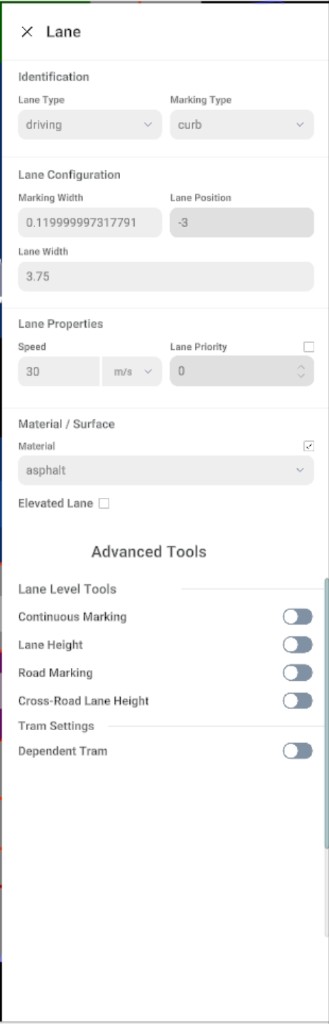
Lane Properties Panel
When you select a lane on the canvas (typically by triple-clicking the road), the Lane Properties panel opens on the right side of the editor.
Lane properties panel screenshot
Sections in the Panel
Identification
| Field |
Purpose |
| Lane type |
Role of the lane (for example driving, sidewalk, bus). |
| Marking type |
Boundary style toward the adjacent lane or shoulder (for example curb, line style). |
Lane Configuration
| Field |
Purpose |
| Marking width |
Width of the marking strip at the lane boundary (when applicable). |
| Lane position |
OpenDRIVE lane index relative to the reference line (often read-only). |
| Lane width |
Width at the current edit context; detailed width-along-road behaviour is covered under Width tags. |
Lane Properties and Surface
| Field |
Purpose |
| Speed |
Design speed with unit (for example m/s). |
| Lane priority |
Priority hint for routing or simulation. |
| Material |
Surface type (for example asphalt). |
| Elevated lane |
When enabled, marks elevated or bridge-style lane behaviour. |
Optional toggles include lane height, road marking, and tram-related options.