Width Tags
Width tags describe how lane width varies with distance along the road (station s in OpenDRIVE terms): tapers, widening, and narrowing. In the editor you often control this with width anchors on the canvas while a lane is selected.
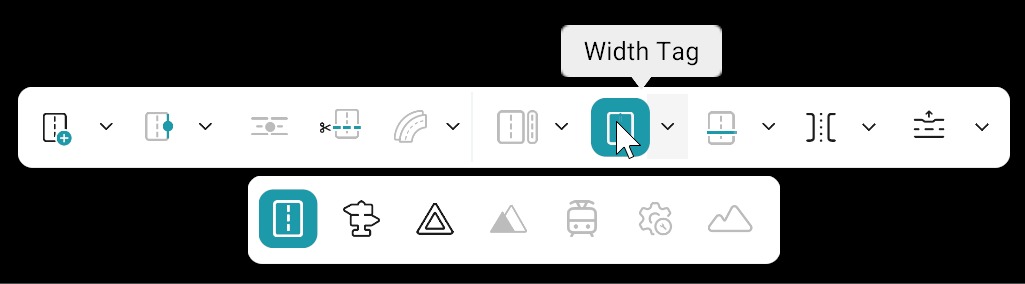
Canvas: Width Anchors and Lane Width
With a lane selected (see Lanes), use width anchors on the canvas to align how width is distributed along the road.
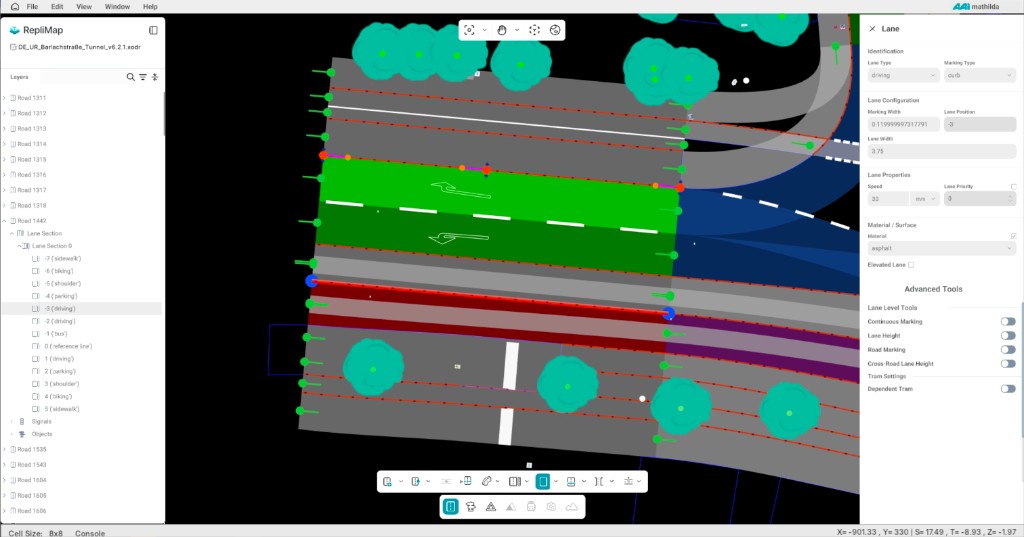
- Add and delete width anchors — Add anchors where the cross-section should change along s; remove anchors you no longer need. Use Delete anchor from the dropdown next to the tool in the Road editing bar, same pattern as other anchor tools.
- Curvature / path handles — Use the large circle on an anchor to move its position; use the small circle (heading control) to adjust curvature / heading at that station.
- Orthogonal to the reference line — Width edits follow OpenDRIVE: lateral offsets are perpendicular to the road reference line, not arbitrary screen directions.
How Width Changes Affect Neighbouring Lanes
Lane widths are defined in order outward from the reference line. Changing the width of an inner lane (for example 1 or -1) shifts outer lanes (2, -2, …), because each outer boundary builds on the previous lane. Expect neighbouring lanes to move on the canvas when you edit widths near the centre.
Road Panel and Tables
- Width rules are often shown as values keyed by distance along the reference (station s), per lane or road, depending on your UI.
- Values you set in the Lane panel’s Lane width field and related controls stay consistent with width-anchor edits on the canvas when the product links them—see Lane Properties panel for panel fields.
- Combine width tags with lane sections so transitions fall where your scenario needs them.
Usage
- Attach width information to lane geometry.
- Keep consistency with Lane offset so the total cross-section stays plausible.
Export
OpenDRIVE represents width through width entries along lanes; ensure stations (s) align with what you author in the editor before export.