Signal Properties Panel
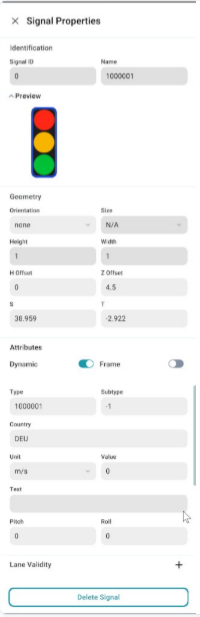
When a Traffic Light, Traffic Sign, or Stop Line is selected on the canvas, the Signal Properties panel opens on the side. The sections below follow the panel layout from top to bottom.
Signal Properties panel screenshot
Sections in the Panel
Identification
| Field | Purpose |
|---|---|
| Signal ID | Unique identifier assigned to the signal (e.g., 0). |
| Name | Label for the signal (e.g., 1000001). |
Preview
Shows a visual representation of the selected signal or sign to help confirm the asset before editing properties.
Geometry
| Field | Purpose |
|---|---|
| Orientation | Direction or alignment of the signal. |
| Size | Overall display size (e.g., Small, Medium, Large), when applicable. |
| Height | Physical height of the signal object. |
| Width | Physical width of the signal object. |
| H Offset | Horizontal offset from the reference position. |
| Z Offset | Vertical height above the ground or reference surface. |
| S | Position along the road reference line (longitudinal). |
| T | Lateral offset from the road reference line (left or right). |
Attributes
| Field | Purpose |
|---|---|
| Dynamic | Enables state changes during simulation (e.g., traffic light cycle: red, yellow, green). |
| Frame | Controls frame-related display or behaviour for the signal, when applicable. |
Advanced
| Field | Purpose |
|---|---|
| Type & Subtype | OpenDRIVE classification (e.g., type 1000001, subtype 00). |
| Country | Country standard used (e.g., DEU for Germany). |
| Unit & Value | Measurement unit and value when required by the asset. |
| Text | Additional label or text on the signal. |
| Pitch | Forward or backward tilt of the signal (in degrees). |
| Roll | Side-to-side tilt of the signal (in degrees). |
Exact fields may vary depending on the asset and product version.
Lane Validity
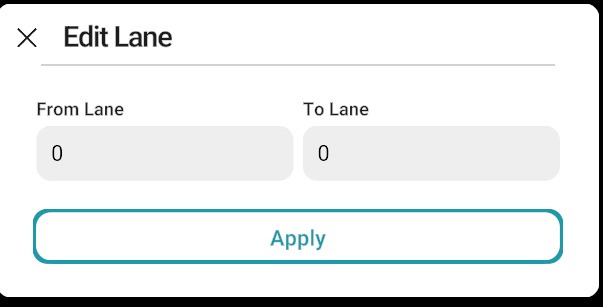
Specifies which lanes the signal applies to on the road. Use + to add a lane validity rule and limit the signal to selected lanes.
When a rule is added, open the Edit Lane dialog. Set From Lane and To Lane to define the lane range, then click Apply.
Controllers linked to the Signal
Lists the traffic controllers associated with the selected signal. Expand this section to view controller assignments linked to the signal.
Delete Signal
Removes the selected signal or sign from the map. Click Delete Signal at the bottom of the panel.