Link, Snap & Adjust
The Link, Snap & Adjust feature allows you to connect multiple Traffic Lights and Traffic Signs to a pole and automatically position them with accurate vertical alignment.
Only the Z-offset of the bottom Traffic Light or Traffic Sign needs to be adjusted, as all other linked items are automatically aligned with the pole.
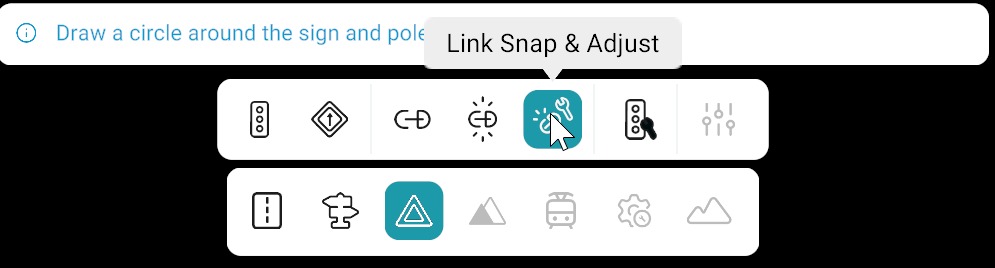
How to Use Link, Snap & Adjust
Follow these steps:
- Activate the Link, Snap & Adjust tool from the signal bar.
- Draw a circular selection around the desired pole, Traffic Signs, and Traffic Lights.
- Click Link from Right panel.
Selected Traffic Signs and Traffic Lights will be linked, snapped, and aligned to the pole.
Comparison: Link Tools at a Glance
| Tool | Links to Pole | Snaps to Pole Position | Auto Vertical Alignment | Manual Adjustment Required |
|---|---|---|---|---|
| Link | Yes | No | No | Position + Z-offset of all signals |
| Link & Snap | Yes | Yes | No | Z-offset of all signals |
| Link, Snap & Adjust | Yes | Yes | Yes | Z-offset of bottom signal only |
After Linking
Set Z-offset for the bottom Traffic Light or Traffic Sign only. All other linked items follow the pole’s vertical alignment automatically.