Create Road
The Create Road tool allows users to add or remove road geometry within the scene. This page explains how to use the tool and manage road geometry effectively.
For details about the main Road tool, the Road Editing Bar, and its integration with other sub-tools, refer to the Road Tool Overview.
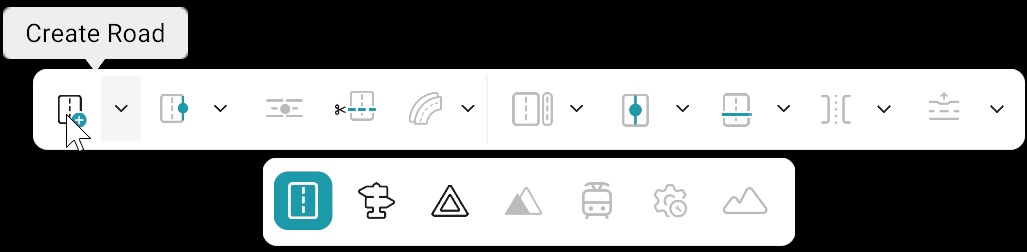
Add / Delete Roads
Use the Add/Delete Road option in the Road Editing Bar to create or remove roads. When the Create Road tool is selected, Add Road is enabled by default.
| Action | Steps |
|---|---|
| Add Road | 1. Select the Create Road tool from the bottom toolbar. 2. Right-click on the canvas to place anchor points and define the road path. 3. Continue adding anchors to shape the road as needed. 4. Drag the blue anchor handles to adjust the road’s curvature and length. |
| Delete Road | 1. Select the Road tool in the bottom toolbar. 2. Choose Add/delete road, then Delete road from the same tool’s menu. 3. Left-click the road on the canvas to remove it. |
When a road is created or selected, the Road Properties panel opens automatically. The road also appears in the hierarchy panel, allowing you to quickly select and focus it by name or ID.
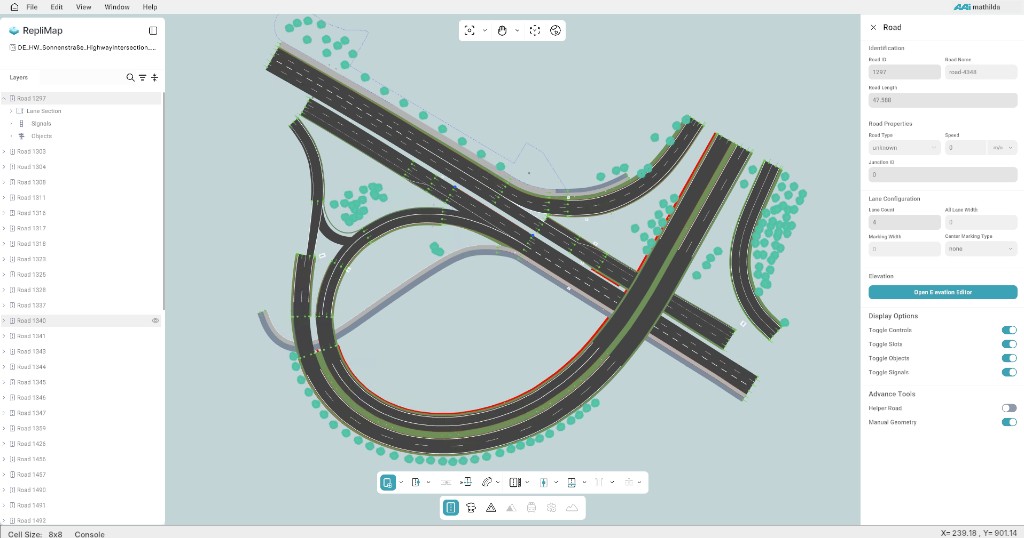
Default Lanes
A newly created road is configured by default as a two-lane road. The lanes are placed on the right side of the reference line when viewed in the direction of travel.
In ASAM OpenDRIVE terminology, these lanes use lane positions -1 and -2, arranged successively outward from the reference line.
For lane-level modifications such as lane order, width, and lane links, use the Lanes workflow and the Lanes tools available in the bottom toolbar.
Junctions with Lane Slots
Dedicated connecting road segment tool is not available in RepliMap yet (Connecting Road tool).
Until this feature is introduced, junctions are created using the standard Road workflow by connecting lanes through lane slots, instead of using a separate connecting segment
Steps to Create a Junction
- Place and align the incoming and outgoing roads so their ends meet at the junction point.
- Click the lane slot on an incoming lane to start the connection.
- Click the lane slot on the outgoing lane to complete the connection.
- Repeat for all lane pairs to complete the junction.
- Check all connections before finishing.
If lane slots are not visible, turn on Toggle Slots in the Road Properties panel under Display Options.