Cut Road
Cut Road (or Split Road) is used to divide a road into multiple sections at a selected point. This helps you modify different parts of the road independently, insert junctions, change road properties for specific segments, or remove unnecessary sections from the road network.
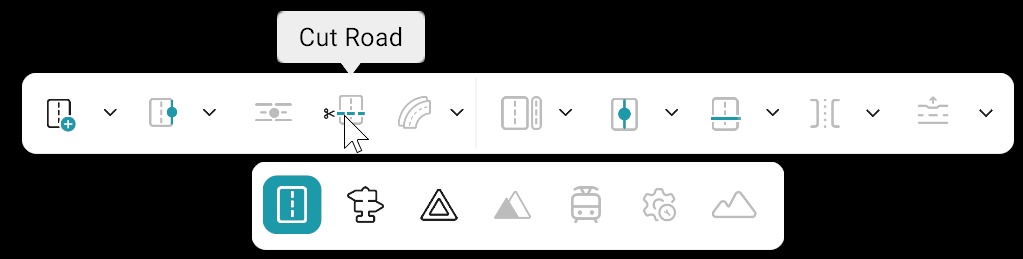
Road Cut / Split Editing
| Action | Description |
|---|---|
| Activate Cut Road Tool | Select the Cut Road Tool from the Road Tool group. |
| Choose Split Position | Left-click on the road reference line at the position where you want to split the road. |
| Edit Split Roads | After splitting, two separate road elements are created in the hierarchy. Select each road individually to adjust anchors, lane sections, or other properties independently. |
| Check the Split Area | Zoom in near the split position to ensure there are no gaps or overlapping zero-length segments between the two road sections. |
When to Use Split Roads
- Insert a Junction — Split a long road to create space for a junction between road sections.
- Change Road Properties — Separate road segments that require different lane counts, speed limits, or other settings.
- Remove Unnecessary Sections — Cut out short or unwanted road segments from the drivable network.
After a Cut
- Re-check lane sections and width tags on each new segment.
- Update connecting roads and anchors so there are no gaps at the cut position.
Topology
A bad cut can leave zero-length segments or broken predecessor/successor links. Inspect the junction graph after editing.