Road Anchor
Road anchors are fixed points placed along a road’s reference line.
They keep specific locations stable by controlling position (and sometimes direction), even when you edit nearby parts of the road. This helps preserve smooth connections or intentional shapes while you modify the road network.
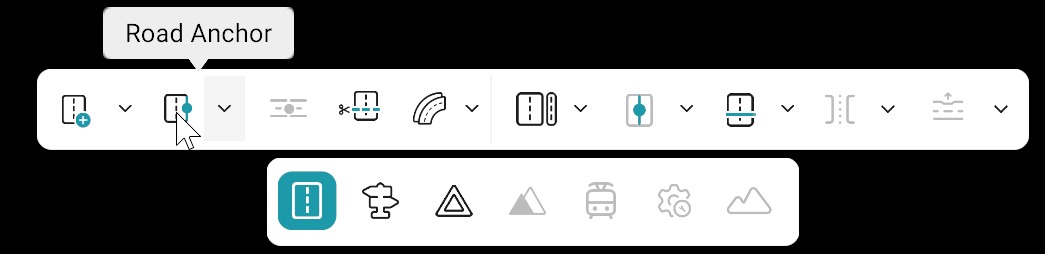
Reference line drives the map
In ASAM OpenDRIVE (.xodr), geometry and lane topology are anchored to the reference line. Moving anchors reshapes that line, so almost everything tied to the road—lanes, lane sections, links, and related content—moves or updates with it. Adjust anchors deliberately and re-check lanes and junctions after large edits.
Add / Delete Anchor
| Action | Description |
|---|---|
| Select a Road | Left-click on the road to select it for editing. When a road is selected, the Anchor Tool becomes active by default. |
| Add an Anchor | With the Anchor Tool active and the road selected, left-click along the road at the desired location to add a new anchor point. |
| Move an Anchor | Left-click an anchor handle to select it, then drag it to a new position. The reference line and all dependent geometry update automatically in real time. |
| Delete an Anchor | Open the dropdown menu next to the Anchor Tool in the Road Editing toolbar and select Delete Anchor. Then, left-click on the desired anchor you want to delete. |
When to Use Anchors
- Stabilize a bend or straight segment while moving nearby control points.
- Pin the start or end of a road to a junction or connecting road.
- Constrain edits so imported geometry does not drift.
Good Practice
- Use the minimum number of anchors needed for your curvature—too many make edits brittle.
- After moving anchors, verify lane offsets and lane sections still make sense along the whole road.