FBX Export
FBX Export sends the current 3D scene — geometry, materials, and textures — out as an FBX file, ready to bring into other tools like Unity or Unreal Engine.
Prerequisite
You must be in Scenery (3D) view to use FBX Export. It's not available in other views.
How to Export
Window menu screenshot
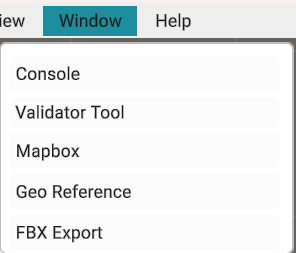
- Switch to Scenery (3D) view.
- Open Window → FBX Export.
- Set the Output Location for the exported file(s).
- Turn on whichever options you need (see Export Options below).
- Click Export.
Export Options
FBX Export dialog screenshot
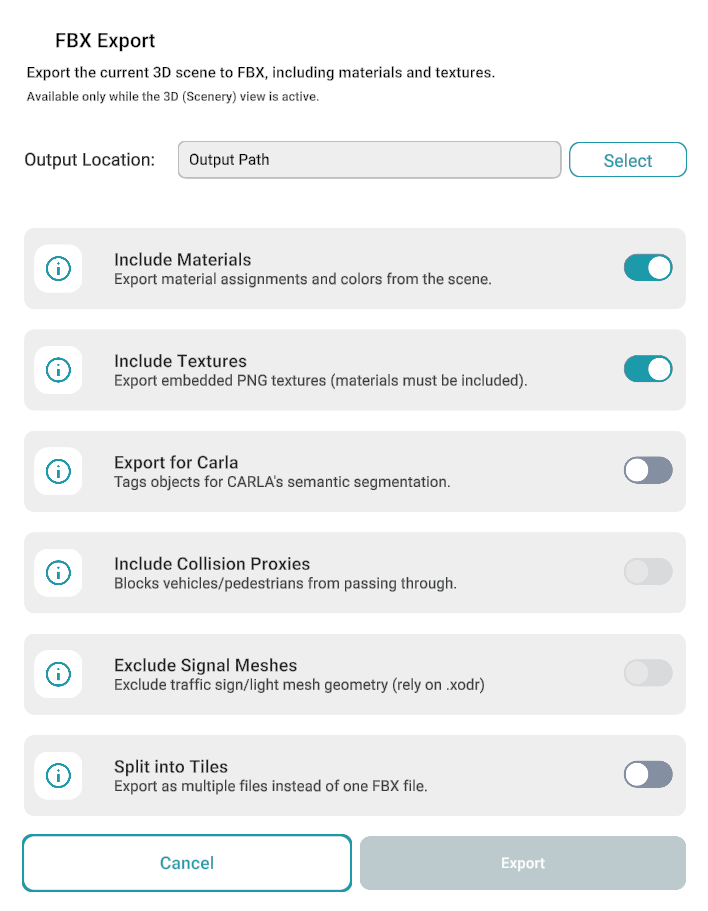
| Option | Default | What it does |
|---|---|---|
| Include Materials | On | Exports material assignments and colors. |
| Include Textures | On | Exports embedded PNG textures (needs Include Materials on). |
| Export for Carla | Off | Tags objects for CARLA's semantic segmentation. |
| Include Collision Proxies | Off | Blocks vehicles/pedestrians from passing through objects. |
| Exclude Signal Meshes | Off | Leaves out traffic sign/light meshes — use when signals come from the .xodr file instead. |
| Split into Tiles | Off | Exports as multiple files instead of one. |
Related
- Export Map — export the map itself in OpenDRIVE-based formats.
- Main screen overview — switching between editor views, including Scenery (3D) view.