Equalize Junction
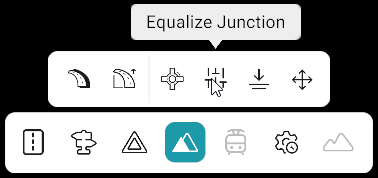
The Equalize Junction tool allows users to equalize the elevation of roads within a junction. It adjusts the elevation of the connecting roads to create a more consistent elevation across the junction.
Warning
When creating a map from scratch, the junction/Junction ID will not appear until the map is saved.
Open the Equalize Junction Tool
- Click Elevation Tools.
- Click a road in the junction.
- Select Equalize Junction.
- Click any road that is part of the junction.
- The Junction panel opens on the left side of the screen.
- All roads present in the junction are listed in the Junction panel.
- Click a Road ID in the Junction panel to highlight the corresponding road on the map.
Equalize Junction Elevation
- Click Equalize.
- The elevation of all roads present in the junction is equalized to create a consistent elevation across the connecting roads.
Reset the Elevation
- Click Reset.
- The elevation is restored to the value that was present before the equalization operation was applied.
Tool Actions
| Action | Description |
|---|---|
| Equalize | Equalizes the elevation of all roads present in the junction to create a consistent elevation across the connecting roads. |
| Reset | Restores the elevation to the value that was present before equalization was applied. |
Notes
- Selecting a Road ID from the Junction panel only highlights the corresponding road on the map; it does not limit the equalization operation to that road.
- Reset does not reset the elevation to 0. It restores the elevation value from before the equalization operation.
- The required junction can be searched using the Junction ID search bar in the left-side Junction panel.
- Equalize applies to the entire selected junction.