Tunnel
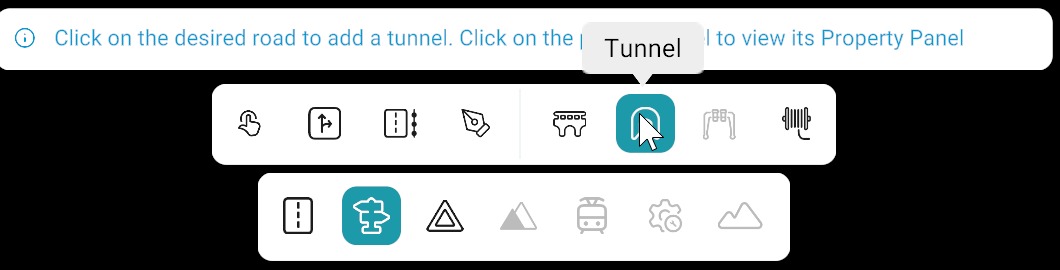
The Tunnel Tool is used to add tunnels to the road scene.
Note
The Tunnel tool is not available in Scenery View for editing or creation. Switch to 2D View to add or edit tunnels.
Adding a Tunnel
- Select the Tunnel Tool.
- Left-click on the desired road location.
- The tunnel is automatically placed at the selected position.
Tunnel Properties Panel
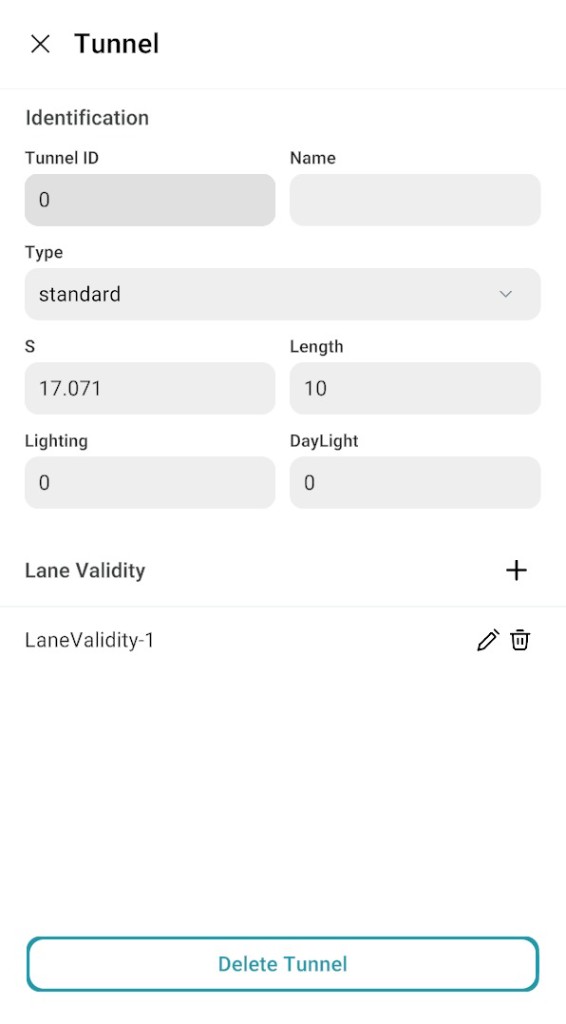
Right-click on a tunnel to open the Tunnel Properties Panel. This panel allows modification of the tunnel properties.
| Property | Description |
|---|---|
| Type | Specifies the tunnel type |
| S | Defines the starting position of the tunnel along the road |
| Length | Defines how far the tunnel extends |
Lane Validity
Specifies which lanes the tunnel applies to on the road. Use + to add lane validity rules and limit the tunnel to selected lanes.
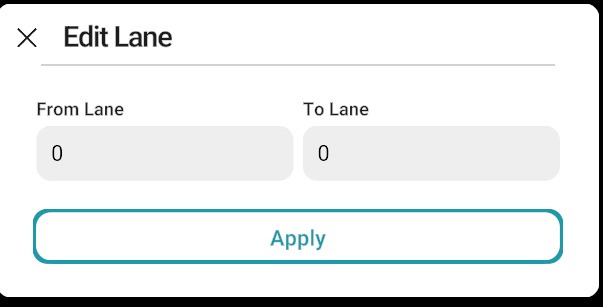
When a rule is added, open the Edit Lane dialog. Set From Lane and To Lane to define the lane range, then click Apply.
Delete Tunnel
The Delete Tunnel option removes the selected tunnel from the scene.
Tunnel properties panel screenshot