Signals
The Signals tool (available in the Bottom Toolbar) contains Traffic Light, Traffic Sign, and Stop Line panels, from where you can add traffic lights, signs, and stop lines on the canvas and use options such as Link, Link & Snap, and Link, Snap & Adjust to position and align them correctly on the map.
Additional editing options become available when a signal, sign, or stop line is selected.
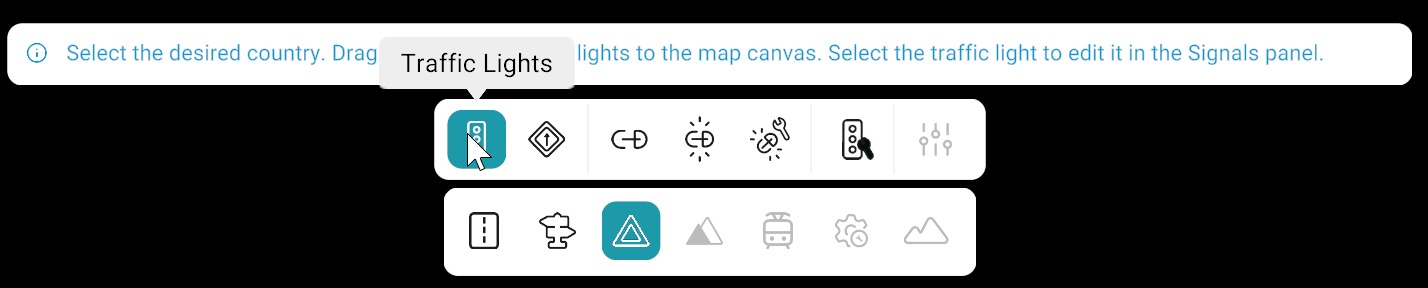
Signals Tool Categories
| Feature | Description |
|---|---|
| Traffic Lights | Tool for placing traffic lights with country selection, drag-and-drop placement, and automatic road association. |
| Traffic Signs | Tool for placing traffic signs using the same workflow as traffic lights, sharing the same properties panel. |
| Stop Line | Tool for creating and managing stop lines on roads, including lane validity and positioning. |
| Link | Links signs and signals to a pole, allowing manual positioning and Z-offset adjustment after linking. |
| Link & Snap | Links and automatically snaps items to the pole with support for Z-offset adjustments. |
| Link, Snap & Adjust | Links, snaps, and vertically aligns items automatically; Z-offset is applied only to the bottom item. |
| Adjust All | Adjusts the vertical positioning of all linked signs and signals across the map at once. |
| Controllers | Assigns signals to a junction controller for managing signal behavior within a junction. |
| Signal Properties Panel | Provides detailed configuration including identification, preview, geometry, attributes, advanced settings, lane validity, and controllers linked to the signal. |
Related
- Main screen overview — bottom toolbar and panels used with signal editing.
- Objects — poles and other props often used with linked signs and signals.
- Road tool — road network and lanes that signals reference.