Repeatable Objects
Repeatable Objects are used to place objects repeatedly along a road path, such as fences, walls, guardrails, hedges, trees, and parking spaces.
These objects can be customized with different spacing, alignment, and repetition settings.

Note
The Repeatable Objects tool is not available in Scenery View for editing or creation. Switch to 2D View to add or edit repeatable objects.
How to Add Repeatable Objects
- Select the road by left-clicking on the location where you want to place the repeatable object.
- Draw the outline or path of the object along the road using left-clicks.
-
After completing the outline, press the Enter key.
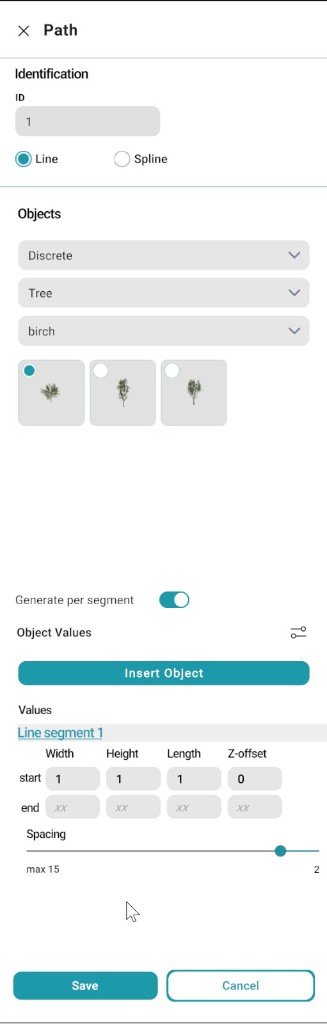
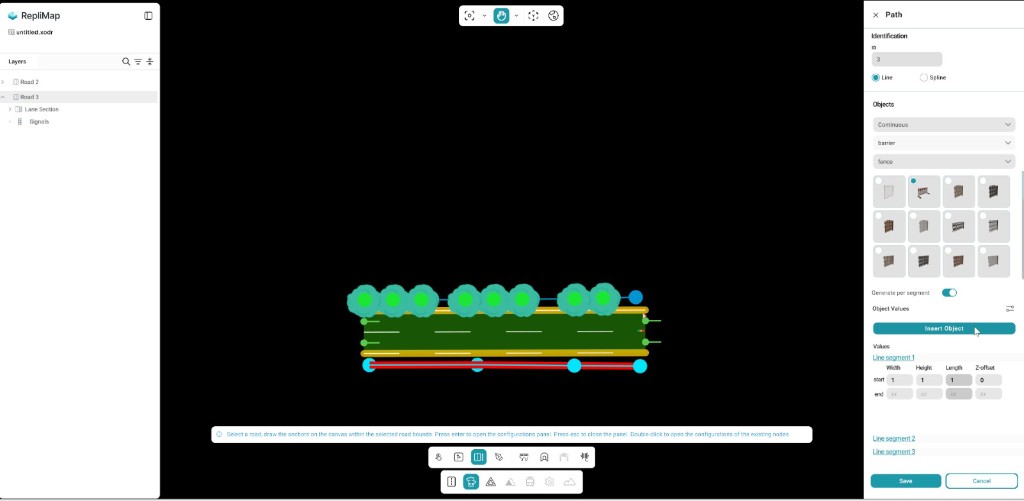
Place anchors within the selected road bounds. When the path is complete, Enter opens the Path configuration panel on the right.
-
In the Path panel, configure the required object properties such as:
- Spacing
- Alignment
- Width
- Height
- Length
- Z-offset
-
Choose the required segment type:
- Line — for straight segments
- Spline — for curved segments (available only for Discrete objects)
-
Select the object category:
- Discrete — for spaced objects such as trees and parking spaces
- Continuous — for connected objects such as fences, hedges, and guardrails
-
If required, enable Generate Per Segment to edit each segment individually.
- After configuring all settings, click Insert Object to create the repeatable object on the road.
Path panel screenshot
Types of Segment
| Segment Type | Description |
|---|---|
| Line | Creates segments in a straight-line format along the selected path. |
| Spline | Creates segments in curved paths. This option is available only for the Discrete object category and is commonly used for placing objects such as trees along curved roads or paths. |
Object Types / Categories
| Category | Description | Examples |
|---|---|---|
| Discrete | Used for objects that require spacing between each repeated object. | Trees, Parking spaces |
| Continuous | Used for objects that form an uninterrupted structure along the road. | Fences, Hedges, Guardrails |
Generate Per Segment Feature
The Generate Per Segment feature allows users to edit object properties either segment-by-segment or for the entire object.
| Option | Description |
|---|---|
| Enabled | Allows users to edit each segment individually. Different values can be assigned to different segments. The Values Bar allows modification of Width, Height, Length, and Z-offset for both the starting and ending points of each segment. After making changes, click Save to apply the modifications. |
| Disabled | Allows users to edit the entire repeatable object as a single unit. Any changes made will apply to the complete object instead of individual segments. The Values Bar allows modification of Width, Height, Length, and Z-offset for the starting and ending points of the full object. After making changes, click Save to apply the modifications. |
Insert Object
After assigning the desired values and settings, click Insert Object in the Object Values section of the Path panel to create and place the repeatable object on the road.
Repeatable Object Properties Panel
The Repeatable Object Properties Panel is the same as the Object Properties Panel.
After inserting the repeatable object along the road, clicking on the object opens the Repeatable Object Properties Panel on the right side of the editor. From this panel, users can modify and adjust the object properties.